
Troubleshoot photo uploads
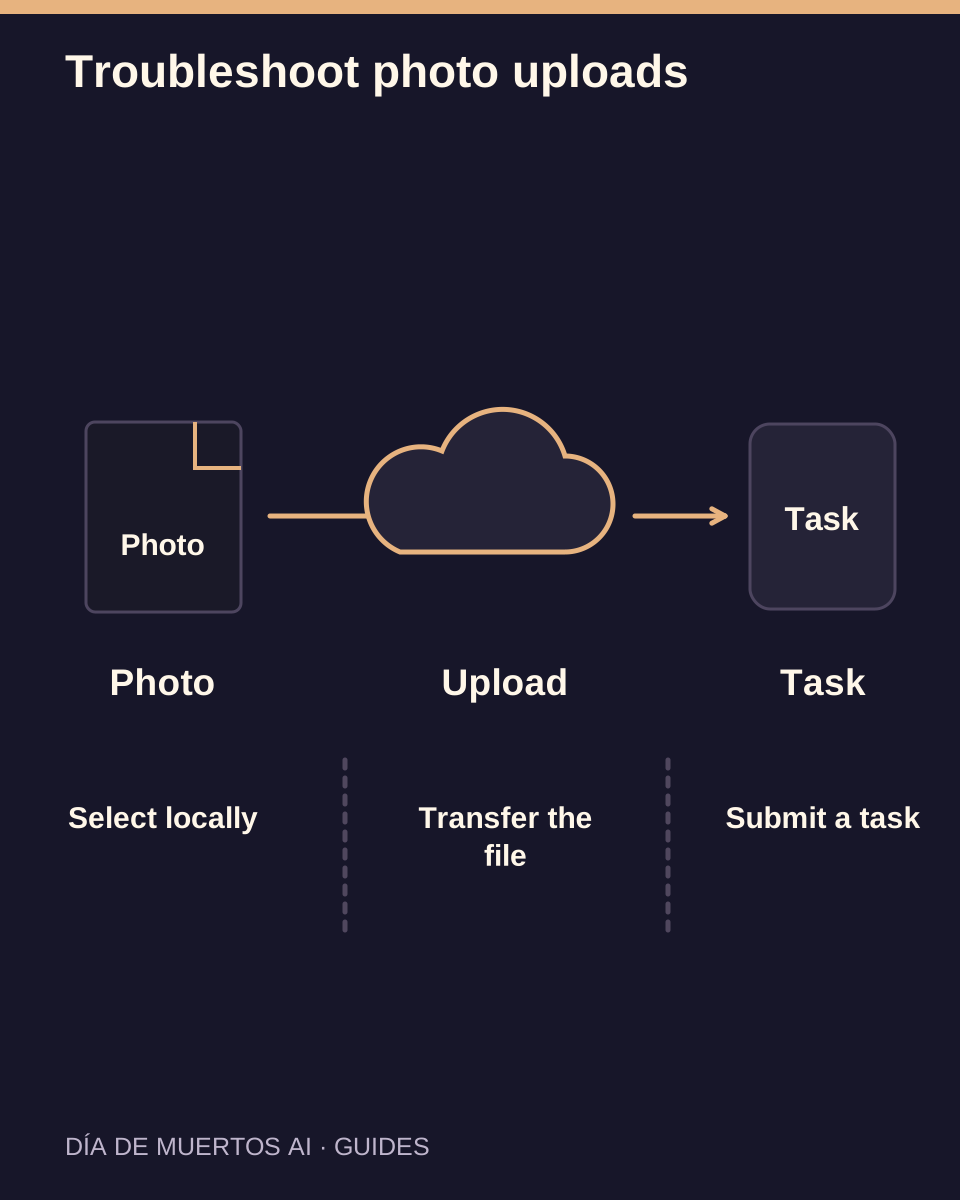
Separate file selection, transfer and task submission so a slow upload does not turn into duplicate generations.
The short answer
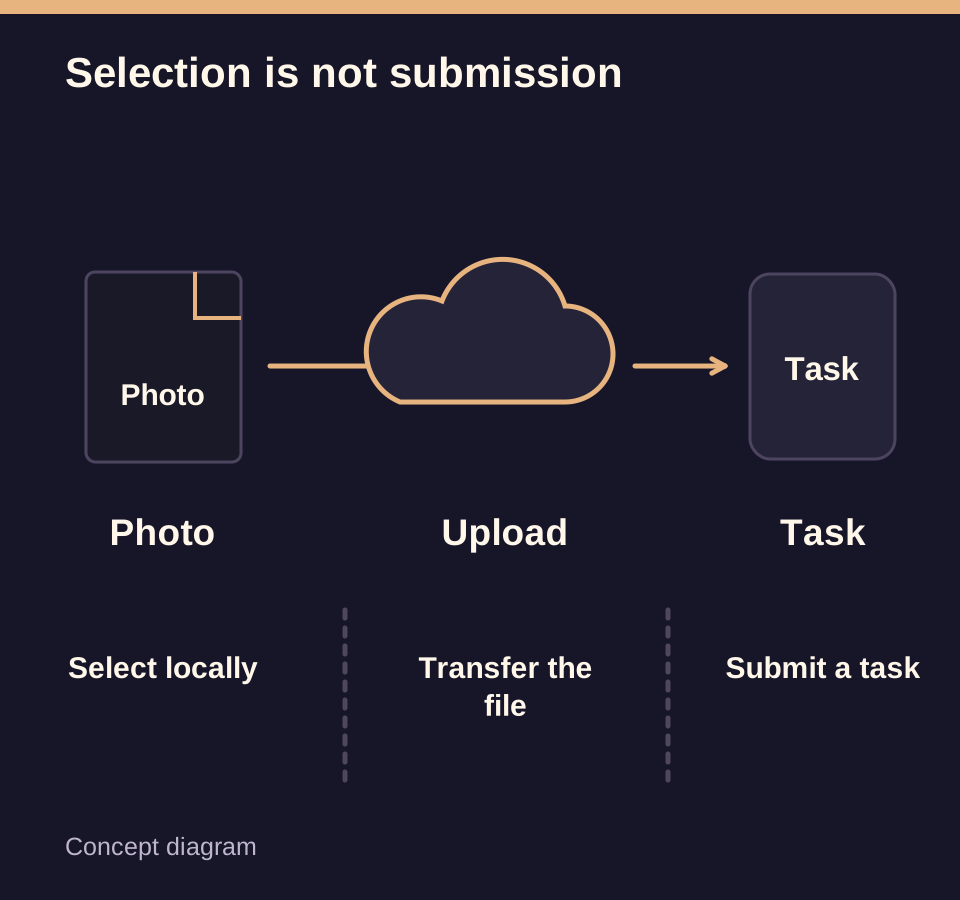
First identify the stage that failed. Selecting a photo is local; uploading transfers the image; submitting creates a generation request. Recover the affected step while keeping any accepted task under its existing record.
In this guide
At a glance
| Review point | What to check |
|---|---|
| Confirm the file you selected | A visible filename is not proof of a finished upload. |
| Wait for the transfer state | A slow connection may delay upload independently of generation. |
| Keep the account and draft together | Sign-in and media recovery are separate states. |
| Check whether a task already exists | An unclear response is a reason to inspect history first. |
| Report the exact failing stage | Useful details let support distinguish input and delivery failures. |
Confirm the file you selected
Open the original image and confirm it is the photo you intend to use. Check orientation, visible subject and the file limits shown by the tool. A renamed extension does not convert an unsupported format.
If the image cannot open on your device, export a genuine supported image from a trusted local editor before trying again.
Wait for the transfer state
Watch the upload status rather than repeatedly replacing the same file. If the transfer fails, keep the source photo and retry that upload after checking the connection.
Selecting a replacement should show the new subject. Verify the preview so an earlier file is not accidentally sent with a later draft.
Keep the account and draft together
If sign-in is requested, return to the same draft and check the selected image and subject type. Private media belongs to its account; switching accounts is not a way to transfer another person’s upload.
If a draft has expired, choose the source file again. Do not assume a thumbnail alone proves the server still has an authorized input.
Check whether a task already exists
If you pressed generate and the response was interrupted, look for the work in your account. Follow its current task record before making another submission.
Record the task identifier when available. A separate attempt may have its own cost, even when it uses the same photo.
Report the exact failing stage
Include the stage, visible error, approximate file size and selected work or task identifier. Never send your password or API credentials.
For a failed upload without an accepted generation, retry only after correcting the file or connection issue. For an existing task, use its status and support path.
Questions about this task
No. File selection, upload and accepted generation are separate steps.